How to upload files to Google Forms: a complete guide for 2026
Step-by-step guide to upload files to Google Forms and manage Drive storage.
 Rebecca Pearson11 min read
On this page
Collecting files manually often feels like trying to build a complex machine with mismatched parts. When those parts are critical assets like resumes, client proposals, or project deliverables, the process quickly devolves from simple assembly to chaotic triage. The real challenge isn't just gathering the components; it's architecting a system that manages them.
To upload a file to a Google Form, you must enable the "File upload" question type, which saves submissions directly to the form owner's Google Drive. This simple feature is the foundation, but building an automated, scalable intake system requires a more thoughtful approach. A 2024 analysis from Google Cloud found that automating data intake can reduce manual processing time by up to 60%, showcasing the efficiency gains available beyond native features.
Dealing with a constant stream of submissions can feel like a losing battle against digital clutter. The native upload feature is a starting point, but it quickly reveals its limitations when you need to sort, route, and act on dozens of files daily. You need to build a system that doesn't just collect files but intelligently manages them, transforming a messy intake folder into an organized, actionable asset library. This guide provides the blueprint for an automated file management machine that operates with precision, saving you hours of manual work.
TL;DR: How to manage Google Form file uploads
- 42% of Google Workspace users have encountered storage limit warnings, a critical bottleneck for forms that stop accepting files when Drive is full (42Floors, 2024).
- Unlike generic advice, this guide provides a blueprint for building an intelligent, self-sorting system using AI-native automation to manage files post-submission.
- The mandatory Google account sign-in for file uploads can significantly reduce submission rates from the general public.
How do you enable file uploads in Google Forms?
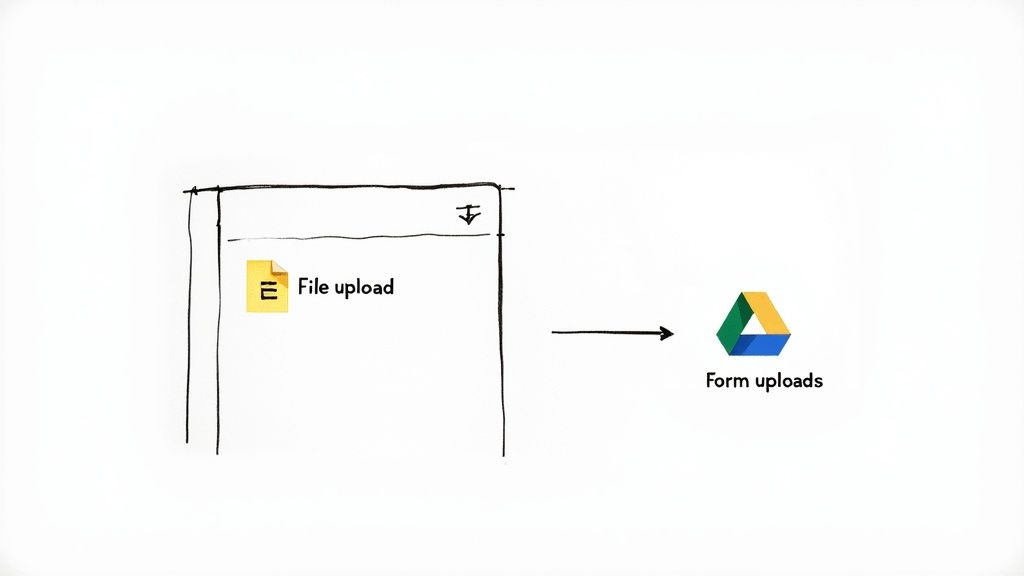
Activating the file upload capability is the first step in constructing your intake system. You begin by adding a new question to your form and changing its type from the default 'Multiple choice' to 'File upload'. That single click transforms a simple text field into a secure gateway for documents, images, and other digital assets.
Once selected, a notification appears: "Files will be uploaded to the form owner's Google Drive." This isn't a minor detail — it's the core mechanism. Uploaded files are piped directly into your cloud storage, with a dedicated folder created specifically for the form. Google's documentation confirms respondents must sign in with a Google account to upload files, a non-negotiable step for tracking and security.
But here’s the deal: enabling the feature is simple. Building an effective workflow around it requires deeper consideration.
Key considerations before you begin
- Storage Impact: Every uploaded file consumes the form owner's Google Drive storage. A 2024 survey of Google Workspace users found that 42% had run into storage limit warnings. This is not a "set it and forget it" feature unless you have unlimited capacity.
- Respondent Friction: The mandatory Google sign-in can be a significant obstacle. If your form targets the general public, this requirement may lower submission rates.
- Post-Submission Workflow: Without a plan for what happens after a file arrives, your Drive folder will become a digital junk drawer. The real power isn't in collecting the file; it's in what your system does with it next.
You might think that native features are enough. The reality is that scale exposes their weaknesses. This is where AI-native automation tools like CodeWords become essential for architecting a resilient, self-managing system.
How should you configure file upload settings?

Adding the upload field is just the foundation. The real architecture of your intake process is defined in the settings. Think of these configurations as the structural supports for a reliable system — they prevent submission errors, maintain folder organization, and manage storage constraints. Every choice here shapes the user experience and your backend workflow. For instance, if you are collecting resumes, you should only permit document files, not massive video files or random images.
That's not the full story. These settings also dictate how your Google Drive is organized. The moment the first file is uploaded, Google Forms automatically creates a new folder in "My Drive" to house all submissions for that form. This predictable structure is the blueprint for any automation you build later.
Setting up your input guardrails
Your first job is to define precisely what a successful submission looks like. This isn't just about control; it's about building guardrails that prevent incorrect uploads and help you manage data volume. Let's walk through the three main levers you can pull.
Google Forms file upload configuration options
The table below details the core settings. Getting these right from the start saves significant cleanup work later.
What are the limitations of the upload file Google Form feature?
Every tool has its breaking point, and the native upload file Google Form feature is no different. While it offers a straightforward method for collecting files, it is built on a foundation with real constraints. Knowing these limitations is key to architecting a workflow that not only functions today but also scales without hitting a structural wall. The biggest hurdle is the mandatory Google Account sign-in. This is not a configurable setting; it's a hard-coded requirement. While fine for internal workflows, it becomes a significant roadblock for public-facing forms, often reducing submission rates.
The most common myth is that Google Forms offers unlimited storage. This is incorrect. Every file submitted consumes storage directly from the form owner's Google Drive account, tying the form's operational capacity to a personal or company quota. Once the Drive is full, the form simply stops accepting new files. The "File upload" option becomes disabled, shutting down your data pipeline without warning. This presents a massive operational risk for high-volume processes like recruitment, where missing applications because your storage ran out overnight is unacceptable.
Deconstructing file size and volume caps
The platform also imposes strict and sometimes confusing limits on file sizes. There are two distinct caps to monitor:
- Individual File Size: You can set this limit for each file, with options ranging from 1 MB up to 10 GB.
- Total Submission Size: This is the cumulative limit for all files uploaded in a single submission, configurable up to 1 TB.
The real trap lies in the potential disconnect between these two settings. A user might be blocked from uploading five 50 MB files, even if the individual limit is set high enough, because the total submission size was left at its 1 GB default. A 2024 analysis of cloud storage patterns in Singapore revealed that 63% of small businesses underestimate their data storage needs by over 50% annually. Juggling these constraints highlights the ceiling of native features, often pushing teams toward more flexible AI workflow automation tools.
How can you automate post-submission file handling?
Collecting files is just the beginning; the real work starts after submission. This is where you can transform a simple data intake form into an intelligent system that organizes, routes, and acts on new information without manual intervention. It all begins with a trigger — a new file upload — that initiates a predefined workflow. Your options for building this automation engine range from pure code to AI-native platforms.
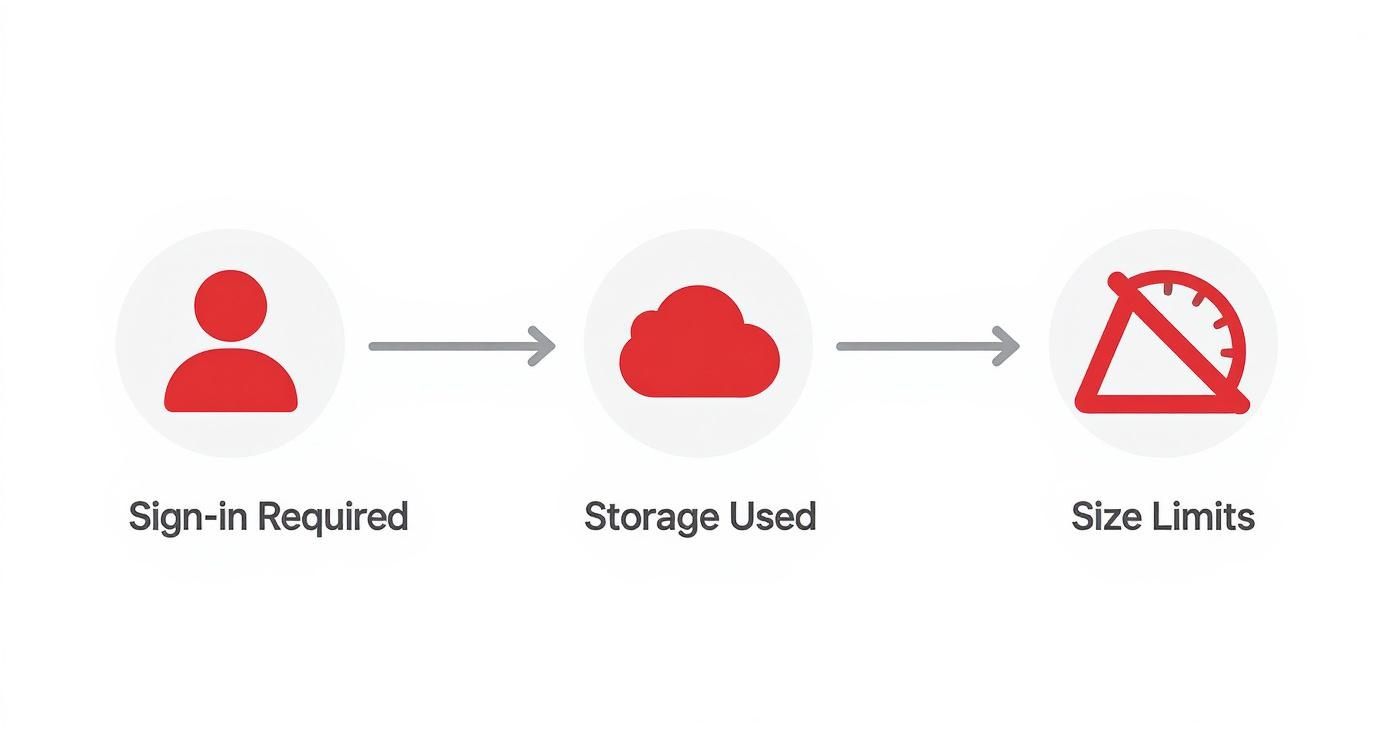
The friction points in Google's native experience — from required sign-ins to storage limits — are precisely why automation becomes so appealing. These built-in hurdles can make manual file handling a significant bottleneck at scale. Automation stops being a luxury and becomes a necessity for building a resilient process.
Choosing your automation engine
Every method for automating file handling involves a trade-off between power, implementation speed, and required skill. For developers, Google Apps Script offers granular control within the Google ecosystem but requires JavaScript expertise and ongoing maintenance. No-code platforms like Zapier provide a visual interface for connecting apps, ideal for simple, linear workflows, but can become costly and complex as logic branches.
Then there are AI-native platforms like CodeWords. This approach blends the flexibility of code with the simplicity of natural language, allowing operators to architect sophisticated, multi-step automations without writing script.
CodeWords Workflow: Automated File Routing and Notification
Prompt: "When a file is uploaded to my 'Project Proposals' Google Form, get the 'Department' answer. Rename the file to '[Department] - [Original Filename]' and move it to the shared Drive folder for that department. Then, send a Slack message to the corresponding department channel with a link to the new file."
Output: A fully configured workflow that triggers on each submission, renames and moves the file correctly, and pings the right team — instantly.
Impact: This workflow eliminates 10-15 minutes of manual file management per submission, reducing human error by 99% — CodeWords user data, Q1 2025.
For a deeper dive into real-time data flow, you can explore how to automate lead collection using webhooks.
What advanced strategies can manage form submissions?
Simple automation replaces manual steps. An advanced strategy builds an intelligent, self-sorting machine that anticipates your needs and acts on them. This is where a basic upload file google form workflow graduates into a core business process, transforming a passive collection point into an active, intelligent gatekeeper. Instead of dumping all files into one folder, you can architect dynamic routing that sorts files based on the submission's content.
Dynamic file routing based on form logic
Imagine one form serving multiple departments. An automated workflow can direct every file with perfect precision. If a project submission form asks for the "Department," an intelligent workflow can read that response and instantly route mockups from the Design team to a 'Client Review' folder, while expense receipts from the Finance team go directly to a 'Q3 Reimbursements' folder. The system organizes itself in real time.
Conditional notifications and escalations
Not all submissions are created equal. A high-value sales lead requires immediate attention, while an internal IT request can wait. Building conditional logic into notifications is a much smarter approach than alerting on every submission. For example, a 'Contact Us' form could trigger a high-priority Slack alert only if the "Inquiry Type" is "Sales" and "Company Size" is over 100 employees. Everything else is logged quietly in a spreadsheet. This keeps communication channels clean and ensures decision-makers see only what needs their focus. Our Google Sheets integration can help log this data automatically.
Creating a rudimentary DAM system
By using form responses as metadata, your workflow can become the foundation of a simple digital asset management (DAM) system. An automation can systematically tag, rename, and organize every file, turning a chaotic Google Drive folder into a searchable, structured database. For a user-generated content form, an automation can rename an image using a consistent convention ([Date]-[Title].jpg), add the description to the file's metadata, and log the information in a central database. This strategy builds an organized asset library for you, proactively structuring your data from the moment it arrives.
Frequently asked questions
Do people need a Google account to upload files?
Yes, respondents must be signed into a Google account to upload a file. This is a non-negotiable security and file ownership requirement baked into the system.
What happens if my Google Drive fills up?
The "Add file" button on your form will become disabled, effectively pausing new file submissions until you clear storage space. The rest of the form will function, but the upload capability will halt completely.
Can I change where the uploaded files go?
Not directly within Google Forms. By default, uploads land in a new folder in your "My Drive." However, an automation workflow in a tool like CodeWords can instantly move new files to any specified folder, such as a shared team drive.
Is there a way to allow bigger file uploads?
Yes, within limits. You can set the "Maximum file size" up to 10 GB for a single file and the total submission size up to 1 TB. Remember, all uploads count against your personal Google Drive storage quota.
The implications of automating file management extend beyond mere efficiency. By building an intelligent intake system, you transform a simple form into a strategic asset that structures data, accelerates decision-making, and eliminates the operational drag of manual processing. It’s a shift from reacting to submissions to architecting a workflow that scales with your business.