The complete guide to getting SQL into Excel in 2026
Learn modern ways to get SQL into Excel — from exports to AI workflows.
 Rebecca Pearson13 min read
On this page
- Why is connecting SQL to Excel a critical business skill?
- What are the core methods for getting SQL data into Excel?
- How can you automate SQL reports directly into Excel?
- How do you troubleshoot common connection errors?
- What about huge datasets and more complex scenarios?
- Frequently asked questions about SQL and Excel
Connecting a SQL database to Excel is more than a technical task; it is the act of creation that transforms a static spreadsheet into a dynamic dashboard. This process is the bridge between a structured data repository and the universal canvas where business analysis happens. The best way to get SQL into Excel is by using Power Query, which creates a direct, refreshable connection to your database. This method avoids the static, error-prone nature of manual CSV exports. According to a 2023 survey from Tableau, analysts spend over 10 hours a week on manual data prep — a drain that direct connections eliminate. This unlocks the potential to build truly automated, reliable reporting systems.
The manual transfer of data from SQL into Excel is a familiar pain. It's a resource black hole of tedious copy-pasting, endless downloads, and the constant risk of human error corrupting a critical report. Moving from that drudgery to a streamlined, reliable flow of information promises to reclaim hours and build a system where you can actually trust your data. This will reveal a counterintuitive solution that simplifies the entire process into something closer to a conversation.
TL;DR: How to get SQL into Excel
- Analysts spend over 10 hours weekly on manual data prep (Tableau, 2023), a task automated by direct SQL-to-Excel connections.
- This guide focuses on AI-native automation, moving beyond manual methods like CSV exports and basic Power Query refreshes.
- The key is to shape data at the source with SQL queries, not just dump raw tables into a spreadsheet.
Why is connecting SQL to Excel a critical business skill?

Manual data transfers are a familiar pain. The process is a resource black hole — tedious copy-pasting, endless downloads, and the constant risk of human error messing up a critical report. Hours get burned on tasks that should be instant, creating a bottleneck that slows down decision-making. This manual friction is a drag on growth.
Here’s the deal: moving from error-prone drudgery to a streamlined information flow is not just about saving time. It's about building a system where you can trust your data. Mastering the SQL into Excel connection gives teams the power to pull the information they need, when they need it, without filing an IT ticket. It democratizes data access, turning analysts and founders into self-sufficient builders who can answer their own questions.
The market sees this need clearly. The SQL Server Transformation Market, valued at USD 20.7 billion in 2025, is expected to grow to USD 54.2 billion by 2035 (Market.us, 2024). This growth highlights the demand for tools and skills that make data accessible. However, there’s a problem most tools ignore. Traditional methods like setting up ODBC drivers or wrestling with Power Query's M language can be daunting, creating new technical hurdles.
That’s not the full story.
A new, almost counterintuitive solution is emerging through modern, AI-driven automation. Instead of relying on complex, manual setups, new approaches simplify the process into something closer to a conversation. By mastering this connection, you can significantly improve your operational efficiency. Ultimately, this connection is the foundational act of turning raw data into strategic insight. The impact goes beyond a single spreadsheet, fostering a culture of data-driven agility.
What are the core methods for getting SQL data into Excel?
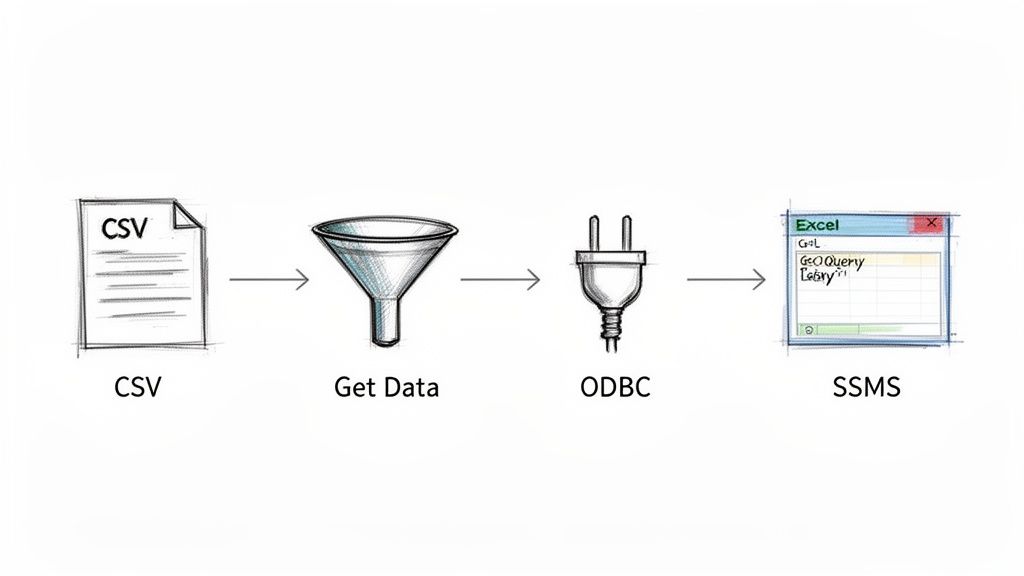
Getting data from a SQL database into Excel is not a one-size-fits-all job. The right method depends on your goal. Are you grabbing a quick snapshot for a one-off analysis, or are you building a dynamic report that needs to stay fresh? Each approach has its own trade-offs. Let’s walk through the main ways to build that bridge between your database and your spreadsheet.
Before we dive deep, it's helpful to see how the main methods stack up. This table breaks down the most common approaches based on setup ease, data freshness, and ideal user.
The manual route: The classic CSV export
The simplest method is exporting to a CSV (Comma-Separated Values) file. Nearly every database tool — from SQL Server Management Studio (SSMS) to MySQL Workbench — lets you run a query and save the results as a CSV. It's fast and straightforward. Its greatest strength is also its biggest weakness: the data is completely static. The second you export that file, it's a frozen snapshot, totally disconnected from the live database. This makes it perfect for one-off analyses but a terrible choice for recurring reports.
Excel's native powerhouse: Power Query
For dynamic, refreshable reports, Excel’s built-in Power Query (under the Get Data tab) is the modern standard. It creates a direct, live connection to your SQL database, letting you pull data that can be updated with a single click. Once you set up the connection, you can refresh it manually or schedule it to update automatically. A 2023 survey revealed that over 60% of analysts spend more than 10 hours a week on manual data exports (Tableau, 2023). This is the tedious work that tools like Power Query eliminate, with some projections showing they can boost productivity by up to 50%.
Other specialized connections
Beyond those two main methods, other options exist for specific situations. An Open Database Connectivity (ODBC) driver acts as a universal translator, allowing Excel to talk to databases that Power Query might not support natively. Many database applications also have their own "Export to Excel" features built right in. While often just a fancier way to create a static file, these tools can sometimes preserve formatting better. While our main focus is on SQL, the principles apply elsewhere; for example, learning to export Linkedin contacts to Excel involves a similar process of extracting and transforming data.
How can you automate SQL reports directly into Excel?
Pulling data by hand is not a system that can grow with you. The real transformation happens when you build a repeatable, scheduled data pipeline that runs on its own. This is the moment you stop being a data wrangler and start becoming a systems builder. While Power Query has a "refresh" button, its limits become clear once you get serious about automation. It often needs the Excel app to be open for someone to click the button. That is not real automation.
Building repeatable workflows
If you're comfortable with code, Python scripts offer total control. Using libraries like pandas and sqlalchemy, you can write a script to connect to your database, run a query, and dump the results into an Excel file. Schedule that script with a cron job on a server, and you have an autonomous workflow. You can learn more about crafting these processes by exploring how to build Excel automations.
But there’s a catch.
Someone has to maintain those scripts. When a database schema changes, an engineer must step in and fix it. This creates a bottleneck that newer AI automation platforms are built to solve. Businesses that automate their SQL into Excel workflows are seeing huge productivity gains and improved data accuracy. AI-driven tools can often process these extracts in less than a minute.
Adopting AI-native automation
Modern platforms take a more intuitive, chat-native approach. Instead of writing and maintaining code, you describe the workflow you want in plain English. This abstracts away the headaches of connection strings and scheduling syntax, empowering the people who need the data to build their own pipelines. The design is all about simplicity. You can define complex workflows with text prompts instead of getting lost in complicated visual builders. This approach makes automation accessible.
CodeWords Workflow: Scheduled Sales Report
Prompt: Every Monday at 8 AM, run the 'weekly_sales_report' query on our PostgreSQL database and save the results to the 'Sales Reports Q3' Google Sheet in a new tab named with today's date.
Output: A new tab is created in the specified Google Sheet every Monday morning, populated with fresh sales data.
Impact: Reclaims 2 hours of manual reporting work weekly and eliminates human error in data transfer.
This method transforms a repetitive task into a reliable, automated system you can set up in seconds and then forget about.
How do you troubleshoot common connection errors?
Connecting your SQL database to Excel is a massive win, but it is rarely a straight shot. The process often feels like a series of frustrating puzzles. Learning to diagnose these issues is what separates an afternoon of headaches from a reliable, automated system. Most connection problems fall into a few familiar buckets, and once you know what they are, fixing them gets easier.
Diagnosing authentication and permission issues
One of the most frequent hurdles is authentication failure. This means the credentials Excel is using are either wrong or lack the right permissions. The error messages can be cryptic, like "Login failed for user," but the root cause is usually straightforward. First, triple-check the server name, database name, username, and password. If the credentials are correct, the problem is almost certainly database permissions. The user account needs, at a minimum, SELECT permissions on the tables or views you're trying to access.
You might think using your personal login is fine, but it's a security risk. A best practice is to create a dedicated, read-only user specifically for your Excel connections. This minimizes security risks and makes it impossible to accidentally change or delete data.
Handling data type mismatches
Another classic problem is the data type mismatch. You pull data into Excel, and suddenly all the dates look like a random string of numbers, like 45381. This happens because SQL and Excel store date information differently. Thankfully, the fix is a quick one-two punch inside Power Query. Find the problem column, head to the "Transform" tab, and explicitly set the "Data Type" to "Date" or "Date/Time." This simple step tells Excel how to interpret those raw numbers, converting them back into a human-readable format.
This diagram shows how SQL reporting has evolved, moving from manual clicks to scheduled tasks and, finally, to truly intelligent, AI-native workflows.

Optimizing for performance and timeouts
Finally, there’s the timeout error. You try to run a query against a massive table, and Excel gives up, throwing an "operation timed out" error. This is a safety net to stop queries from running forever. Most believe the only solution is to pull the entire table every time. The opposite is true. The real fix is to filter your data at the source before it touches Excel. Use a WHERE clause to filter by date range, status, or another relevant field. By selecting only the specific columns and rows you need, you slash the amount of data transferred, making your queries faster and eliminating timeout errors.
What about huge datasets and more complex scenarios?

Once you start pulling millions of rows, the usual methods for getting SQL data into Excel begin to fail. Excel’s hard limit of just over one million rows per worksheet is a concrete wall. Trying to cram a massive dataset directly into a sheet is a surefire way to get a frozen app. This is where the artistry comes in. You need to stop thinking about extracting all the raw data and start thinking about shaping it before it ever leaves the database.
Aggregate data at the source
The single most effective trick for handling scale is to perform aggregations directly in the SQL query. Why pull every transaction from the last five years when you can summarize it on the server? This is what the GROUP BY clause was designed for. For example, instead of importing a million individual sales records, you can group them to get total sales per day or product.
SELECTproduct_category,region,SUM(sale_amount) AS total_sales,COUNT(order_id) AS number_of_ordersFROMsales_transactionsWHEREsale_date >= '2024-01-01'GROUP BYproduct_category,region;
A query like this transforms a gigantic table into a tight summary perfect for a dashboard. The principle is simple: let the database do the heavy lifting. Knowing how to optimize SQL queries is critical here, as a well-written query ensures your data transfer is fast.
Use the power of the Data Model
There is a common misconception that data coming into Excel must live on a worksheet. Excel has a much more powerful engine for big data: the Data Model, also known as Power Pivot. When setting up a connection in Power Query, you can choose to "Load To..." and then "Add this data to the Data Model." This creates a direct link to your SQL table without dumping millions of rows onto a sheet. The Data Model can handle hundreds of millions of rows, completely sidestepping worksheet limitations. From there, you can build PivotTables and create relationships between multiple tables, all drawing from data that never touches a single cell. This approach lets you build scalable reporting systems that stay fast and responsive. For anyone creating robust reports, exploring how CodeWords connects these models to hands-off workflows is the next logical step.
Frequently asked questions about SQL and Excel
Can you use a cell value as a parameter in a SQL query in Excel?
Yes, this is a great way to create an interactive dashboard. The cleanest method is with Power Query. Give the cell you want to use a name by defining a Named Range. Then, in the Power Query Editor, you can reference that named range to filter your SQL WHERE clause.
Is it better to run a SQL query or pull a full table into Excel?
It is almost always better to run a specific, filtered SQL query. Pulling an entire multi-million row table into Excel eats up network bandwidth and can easily crash the application. A sharp, well-written query that filters and aggregates data on the server is vastly more efficient.
How can you refresh SQL data in Excel automatically without opening the file?
Excel's built-in refresh requires the file to be open. To get around this, you need a tool that runs on its own schedule. An AI automation platform like CodeWords is perfect. You can instruct it to run a query and update a cloud spreadsheet on a set schedule.
What is the best way to handle SQL data that exceeds Excel’s row limit?
Do not try to load it into a worksheet. The proper way to handle massive datasets is to use Power Query’s "Load to Data Model" option. This sends the data into Power Pivot's engine, which is built to handle millions of rows. You can then build PivotTables connected to the model.
Moving from manual pulls to a fully automated system is the final step in this transformation. By adopting AI-native tools, you can build data pipelines that are not only efficient but also intelligent, freeing you to focus on the insights — not the extraction.