Google Calendar to Notion Sync
Sync Google Calendar events to Notion automatically. Keep your calendar and database connected with duplicate detection built in.
Example starting point only. Verify every connection and any sending, booking, inventory, approval, or handoff action before deployment.
 Aymeric Zhuo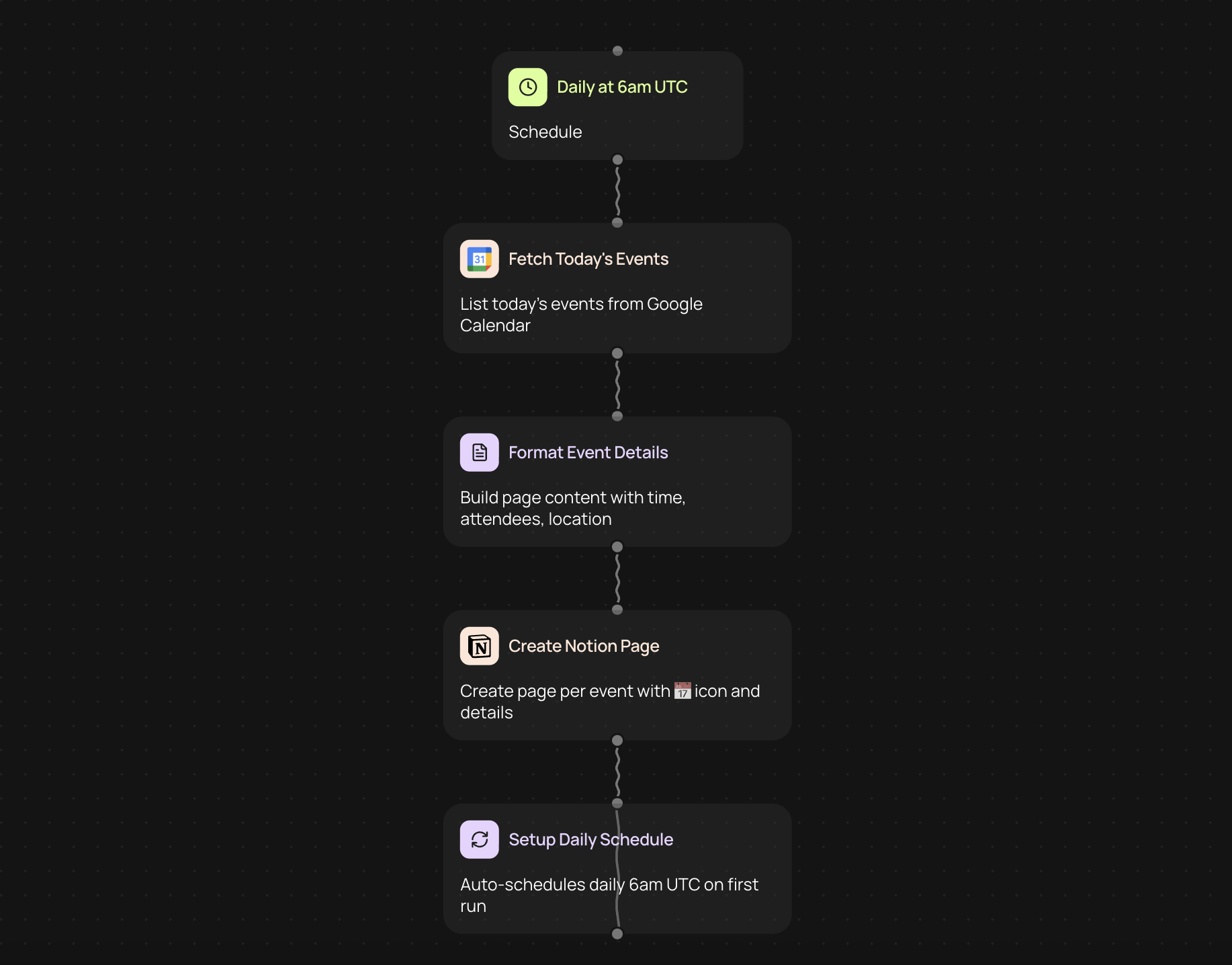
Connect your calendar to Notion
Keep your Google Calendar events and Notion database in sync without manual updates. This automation copies new calendar events to your Notion workspace, making it easy to track meetings, deadlines, and appointments in one place.
How it works
1. Connect your Google Calendar account to CodeWords
2. Link your Notion database where you want events to appear
3. Choose which calendar details to sync, like event names, times, and descriptions
4. Set up duplicate detection to avoid creating the same event twice
5. Turn on the automation and let it run in the background
Why sync Google Calendar with Notion
Bringing calendar events into Notion gives you more flexibility to organize your schedule. You can add custom properties, create filtered views, and combine calendar data with other information you track in Notion.
The built-in duplicate detection ensures each event appears only once, even if you modify it in Google Calendar. Changes sync over automatically, so your Notion database stays current without extra effort on your part.
Common ways to use this automation
• Track work meetings alongside project notes and tasks
• Build a content calendar that includes scheduled events and publication dates
• Monitor client appointments in a CRM-style database
• Create a personal dashboard with calendar events and daily goals
• Coordinate team schedules in a shared workspace
Set up your sync in minutes
No technical skills needed to get started. The setup process walks you through each connection step by step. Once configured, your Google Calendar events flow into Notion whenever they're created or updated — keeping everything synchronized without any manual work.
More templates
Get started today
Your first workflow is free to build.
Describe what you need. Cody handles the build, the connections, and the deployment.