PDF Table Extractor — turn PDFs into actionable tables
Extract tables from your PDFs into spreadsheets with reduced manual work. Easily convert PDF tables to CSV or Excel automatically with CodeWords.
Example starting point only. Verify every connection and any sending, booking, inventory, approval, or handoff action before deployment.
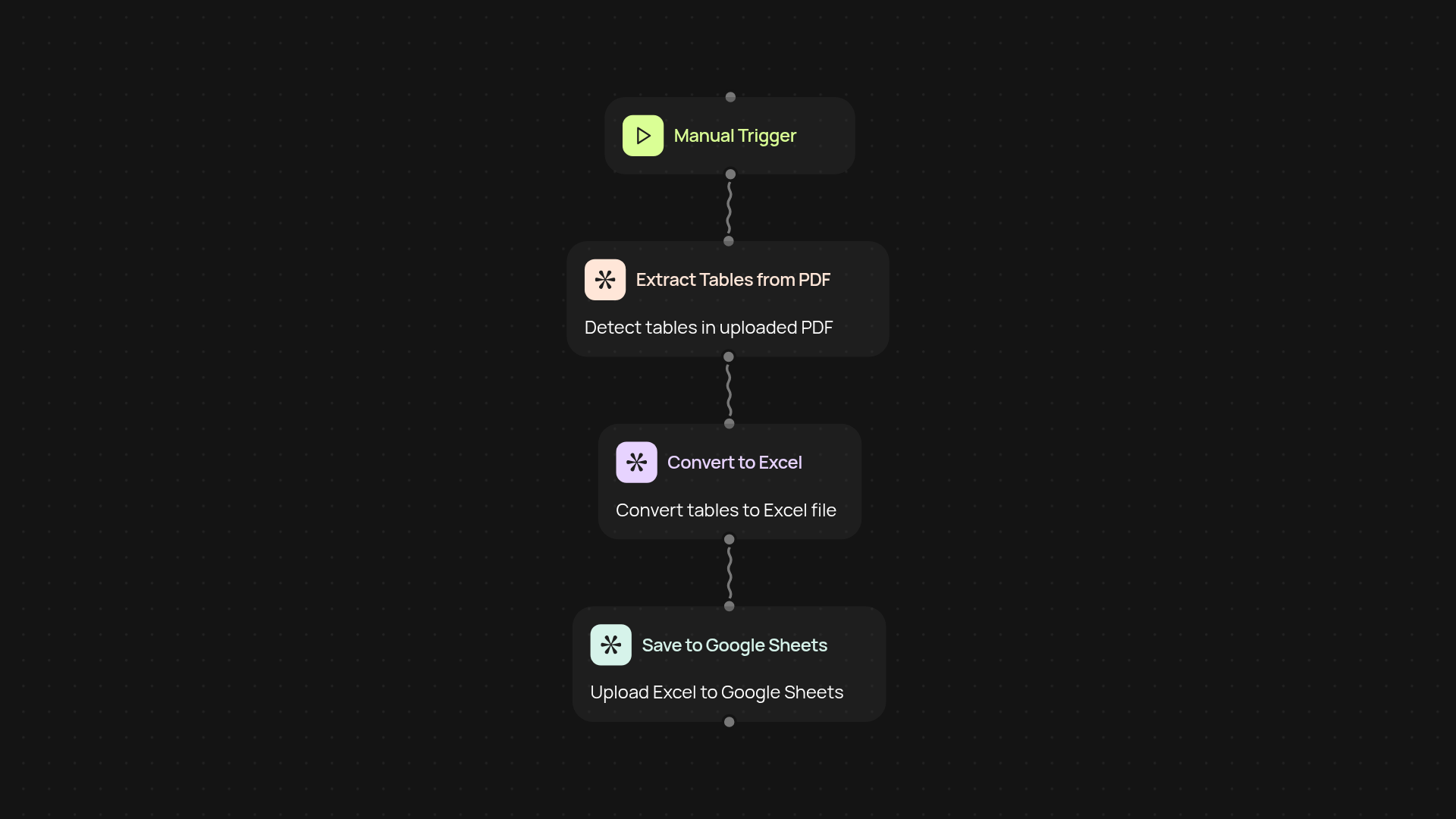
How does PDF table extraction work from start to finish?
Extracting tables from PDFs no longer needs to be a manual, time-consuming task. With PDF Table Extractor, you simply upload your document — our automation pulls out every table, organizes the data, and delivers results in a clear CSV or Excel file. No more copying and pasting, or struggling with formatting: what you get is ready-to-use, structured data for your workflow.
Can I convert multi-page or scanned PDFs to Excel?
Yes — PDF Table Extractor handles multi-page files and even scanned PDFs, thanks to built-in OCR technology. Even if your tables are split across pages or aren't perfectly aligned, the extractor finds them and transforms the data into clean, readable tables. Get results after setup and review, regardless of your PDF's layout.
Will my formatting and columns be preserved?
Absolutely. PDF Table Extractor works hard to maintain the structure of your tables, so column headers and rows stay organized. You receive a clear, consistent spreadsheet you can instantly use for reporting, analysis, or sharing with your team. No messy reformatting required.
How do I get started and what do I need?
Getting started is simple. To use PDF Table Extractor, all you need is your PDF file. Trigger the extraction when you upload, or connect to your preferred document management system for scheduled processing. Within minutes, your data is waiting for you in CSV or Excel format — all handled effortlessly in the background, so you can focus on next steps.
More templates
Get started today
Your first workflow is free to build.
Describe what you need. Cody handles the build, the connections, and the deployment.