Notion to Google Sheets Sync
Sync your Notion database to Google Sheets with color preservation. Create new spreadsheets or update existing ones for seamless team collaboration.
Example starting point only. Verify every connection and any sending, booking, inventory, approval, or handoff action before deployment.
 Rithul Palazhi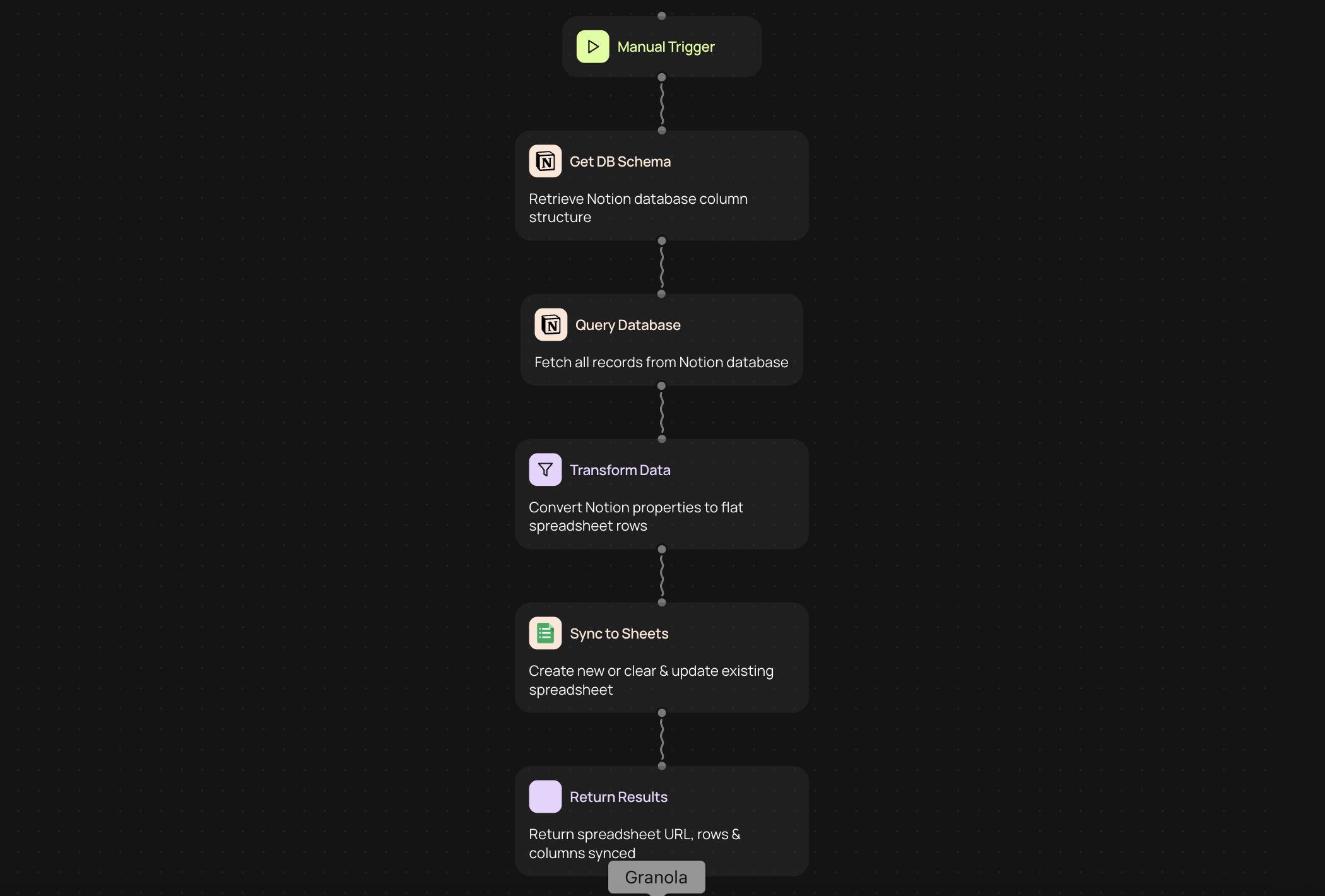
Connect your Notion databases with Google Sheets
Your team relies on Notion for organizing projects, tracking tasks, and managing information. But when you need to share data with stakeholders who prefer spreadsheets or create reports that combine multiple sources, moving information manually wastes valuable time.
This automation syncs your Notion database content directly to Google Sheets, preserving the colors from select and multi-select fields so your categorization remains clear and consistent across both platforms.
How Notion to Google Sheets sync works
The automation connects your Notion workspace with Google Sheets to keep your data synchronized without manual exports or copying.
1. Choose the Notion database you want to sync as your data source.
2. Select whether to create a new Google Sheets spreadsheet or update an existing one.
3. Map your Notion database properties to the columns in your spreadsheet.
4. Configure how often you want the sync to run — on a schedule or triggered by changes.
5. The automation transfers your data while maintaining the original color coding from your Notion select and multi-select fields.
Why project managers and operations teams choose this integration
For project managers coordinating across departments, this sync means stakeholders who prefer spreadsheets always have current information without requesting exports. Your status colors, priority levels, and category tags remain visually consistent.
Operations teams benefit from having Notion data available in Google Sheets where they can create pivot tables, charts, or combine information from other sources for comprehensive reporting.
The color preservation feature ensures that your visual organization system translates perfectly — when a task is marked as high priority in red within Notion, it appears the same way in your synced spreadsheet.
Creating new spreadsheets versus updating existing ones
When you need a fresh report or a dedicated spreadsheet for a specific project, the automation can create a new Google Sheets file populated with your Notion data.
For ongoing tracking and dashboards, updating an existing spreadsheet keeps all your formulas, charts, and formatting intact while refreshing the underlying data from Notion.
This flexibility means you can maintain master tracking spreadsheets that combine Notion data with calculations and visualizations, all kept current without manual intervention.
Supporting select and multi-select field colors
The tags, statuses, and categories you've carefully color-coded in Notion carry over to Google Sheets with their original colors preserved.
Project statuses — whether in progress, on hold, or completed — maintain their distinct colors for quick visual scanning. Team assignments, priority levels, and department tags all sync with their formatting intact.
This visual continuity means team members working in either platform see information presented consistently, reducing confusion and maintaining your established organizational system.
Common use cases for syncing Notion to Google Sheets
• Weekly project status reports that combine Notion task data with budget calculations in spreadsheets
• Client-facing dashboards where stakeholders prefer Google Sheets for viewing project progress
• Cross-functional reporting that merges Notion databases with financial data from other sources
• Archive creation for completed projects while keeping the active workspace in Notion
• Team capacity planning that analyzes Notion task assignments using spreadsheet pivot tables
Get started with Notion to Google Sheets automation
Setting up your sync takes just a few minutes. Connect your Notion workspace and Google account, select your database and destination spreadsheet, then configure your sync preferences.
Your data flows between platforms while you focus on the work that matters, with the confidence that everyone has access to current, accurately formatted information.
More templates
Get started today
Your first workflow is free to build.
Describe what you need. Cody handles the build, the connections, and the deployment.